> ## Documentation Index
> Fetch the complete documentation index at: https://qawolf-mktg-5213-self-service-faq-page.mintlify.site/llms.txt
> Use this file to discover all available pages before exploring further.
# How to integrate with Azure DevOps Boards
> Connect QA Wolf to Azure DevOps Boards to automatically create and sync bug report issues using OAuth.
Go to `https://dev.azure.com/ORGANIZATION_NAME/_settings/organizationPolicy` — **ORGANIZATION\_NAME** is your Azure DevOps Organization name.
**Because** QA Wolf connects to Azure DevOps using OAuth, you must enable **Third-party application access via OAuth**.
 If **Third-party application access via OAuth** is disabled, an Azure DevOps organization owner must enable it before QA Wolf can be authorized. If you are not an organization owner, contact your Azure DevOps administrator.
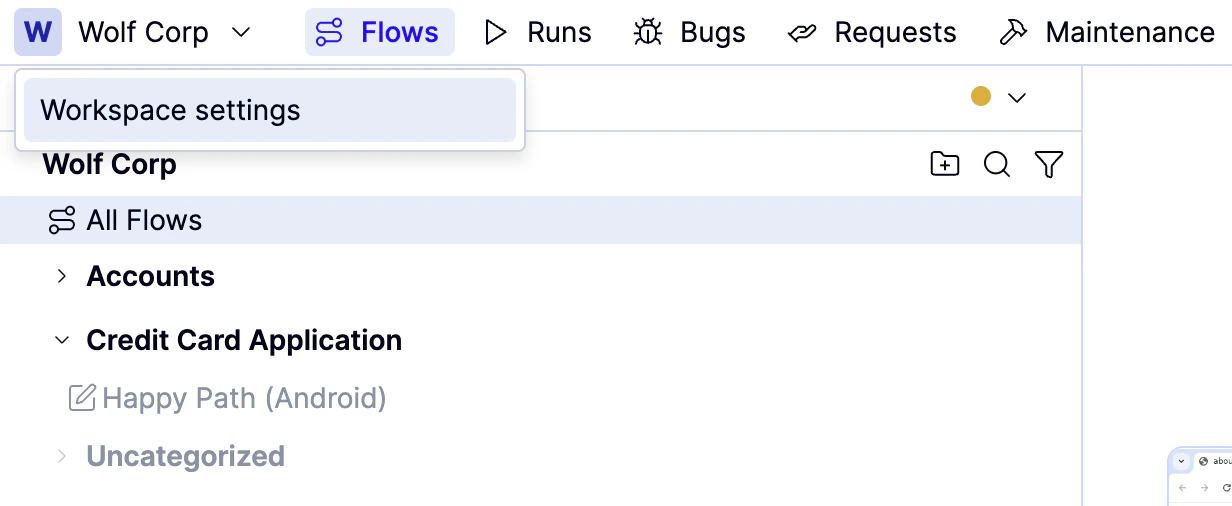
Select **Workspace settings** from the **Workspace name** dropdown above the flows list.
If **Third-party application access via OAuth** is disabled, an Azure DevOps organization owner must enable it before QA Wolf can be authorized. If you are not an organization owner, contact your Azure DevOps administrator.
Select **Workspace settings** from the **Workspace name** dropdown above the flows list.
 Click **Integrations** from the left-side navigation bar.
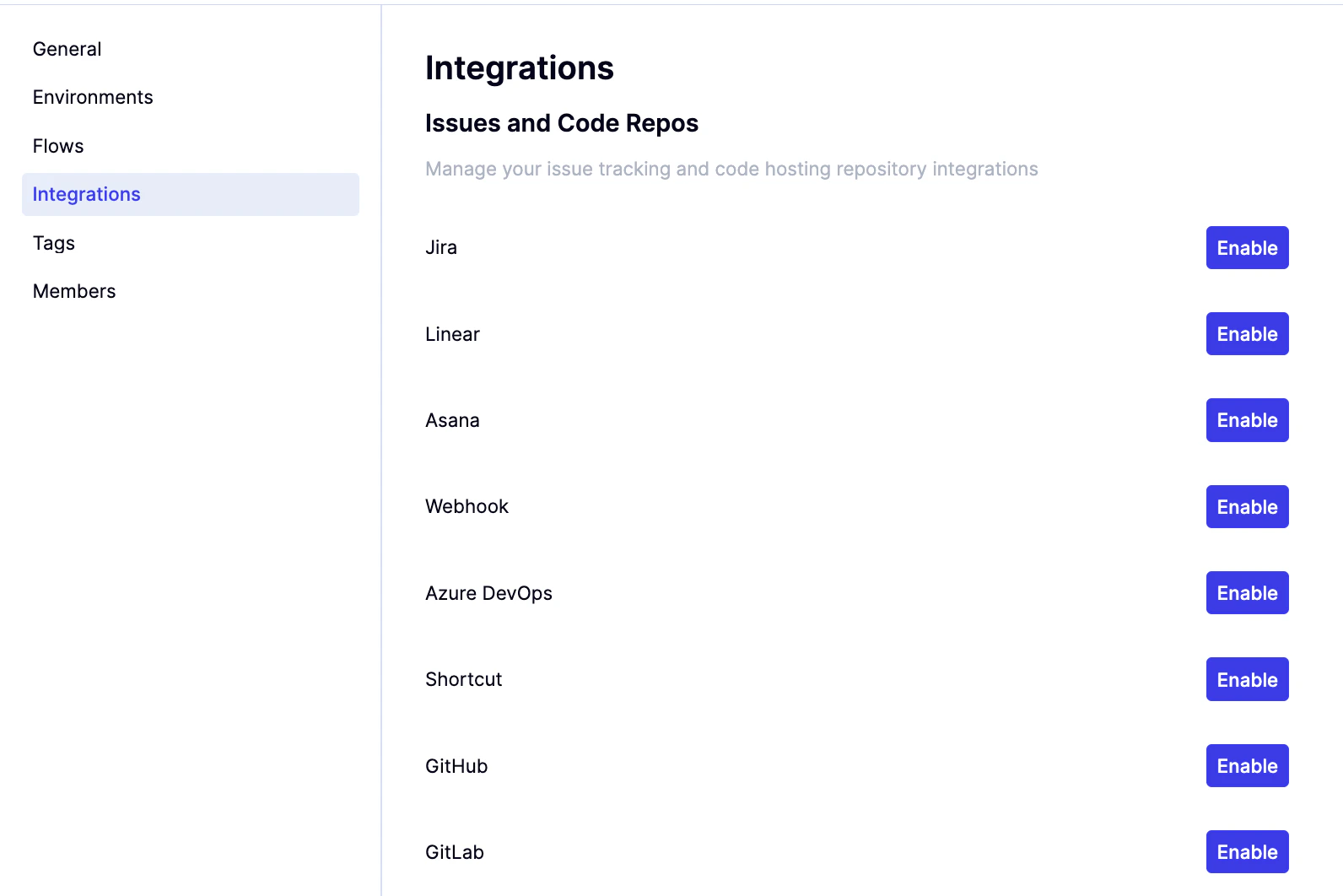 Click **Enable** next to Azure DevOps.
Click on the connect button.
Click **Enable** next to Azure DevOps.
Click on the connect button.
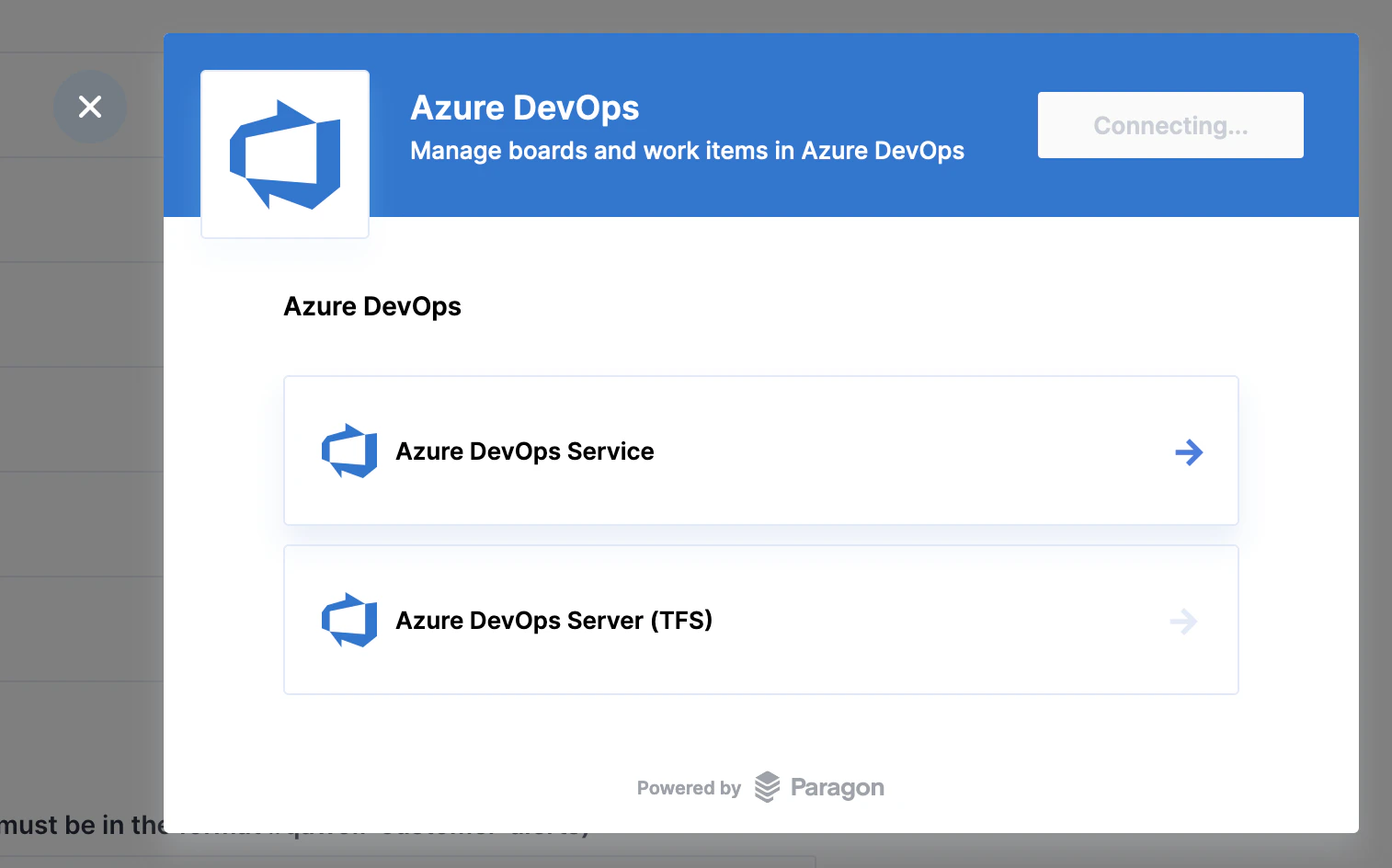
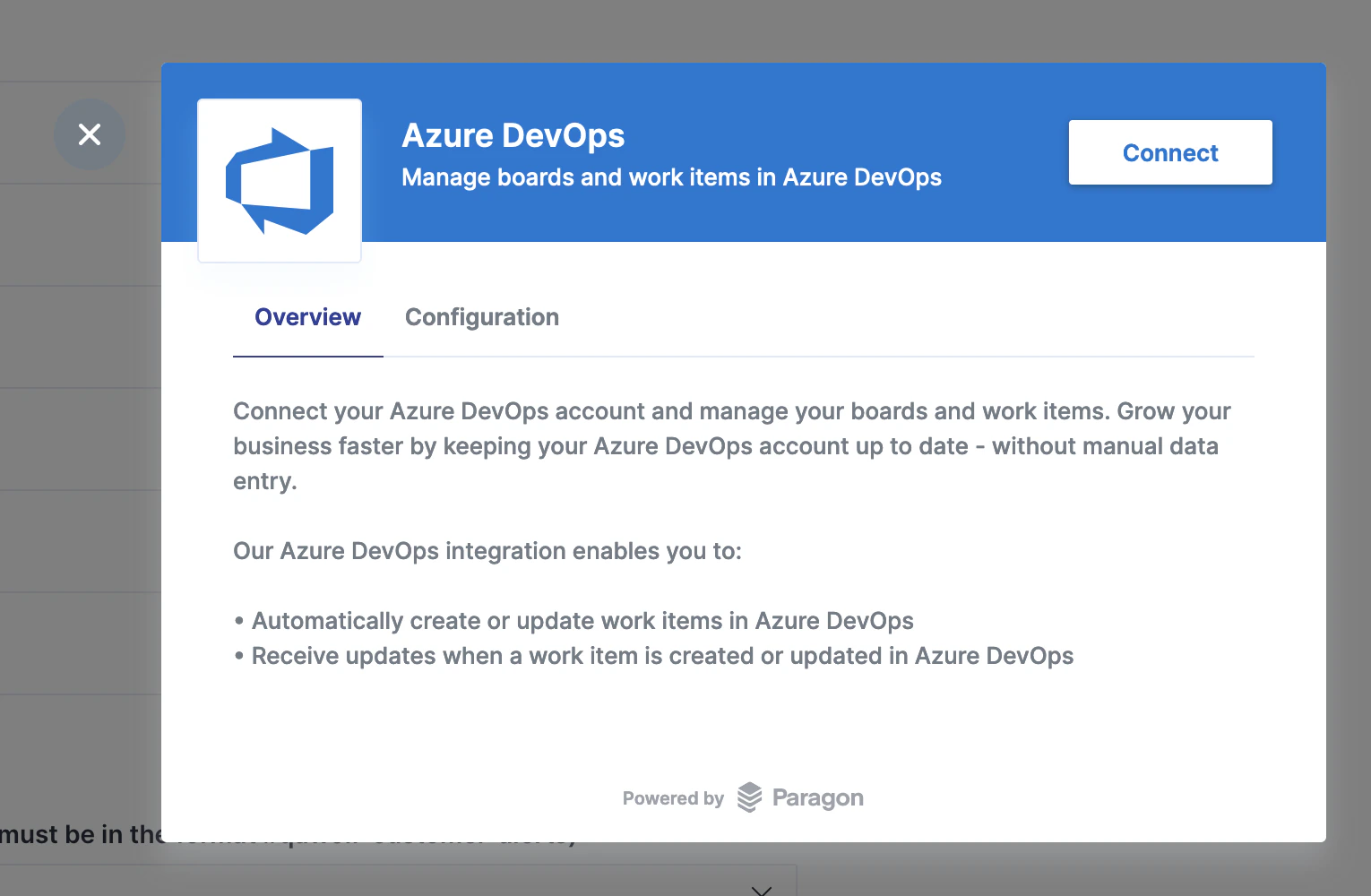 Select the **Azure DevOps** service.
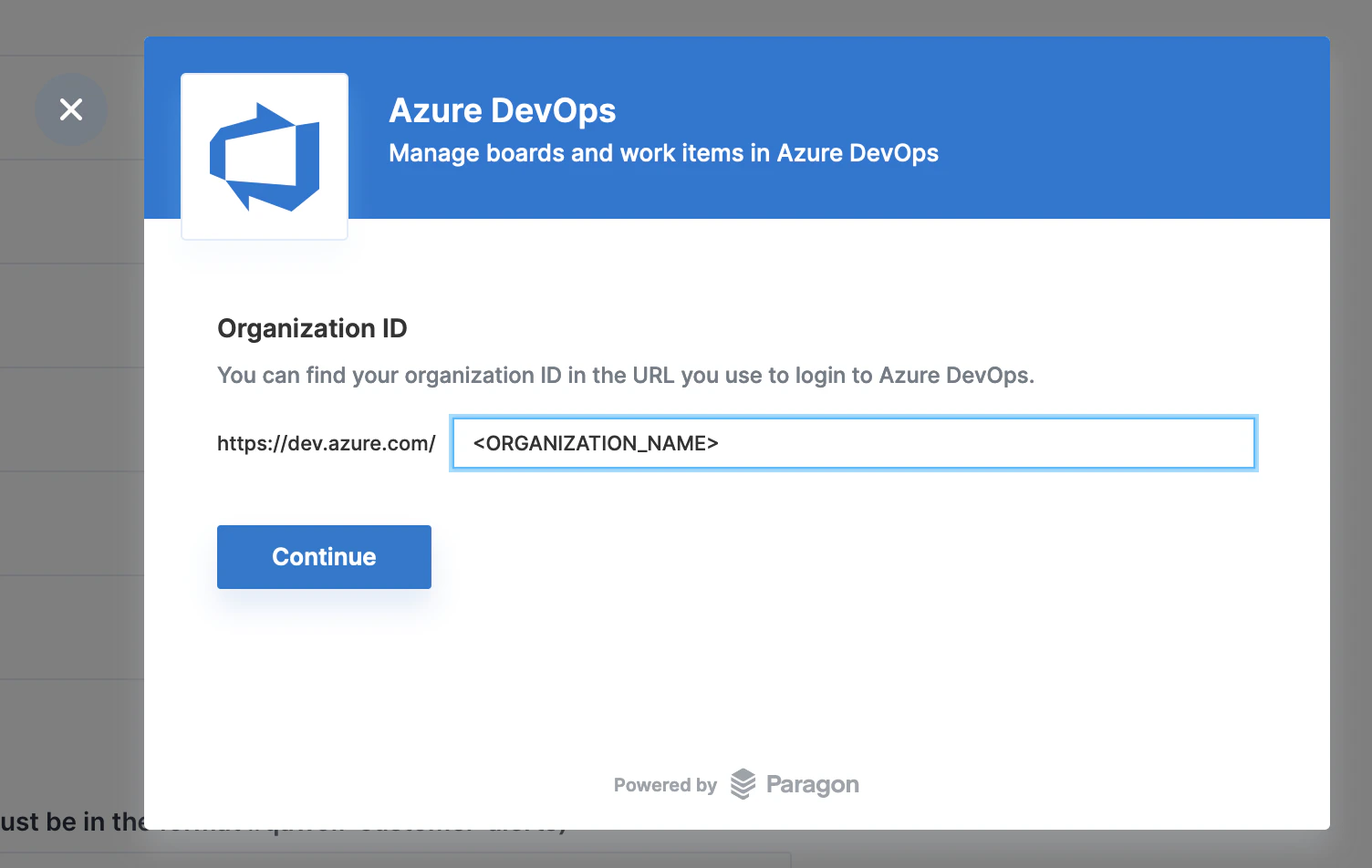
 Enter the Azure DevOps **Organization name** and click **Continue**.
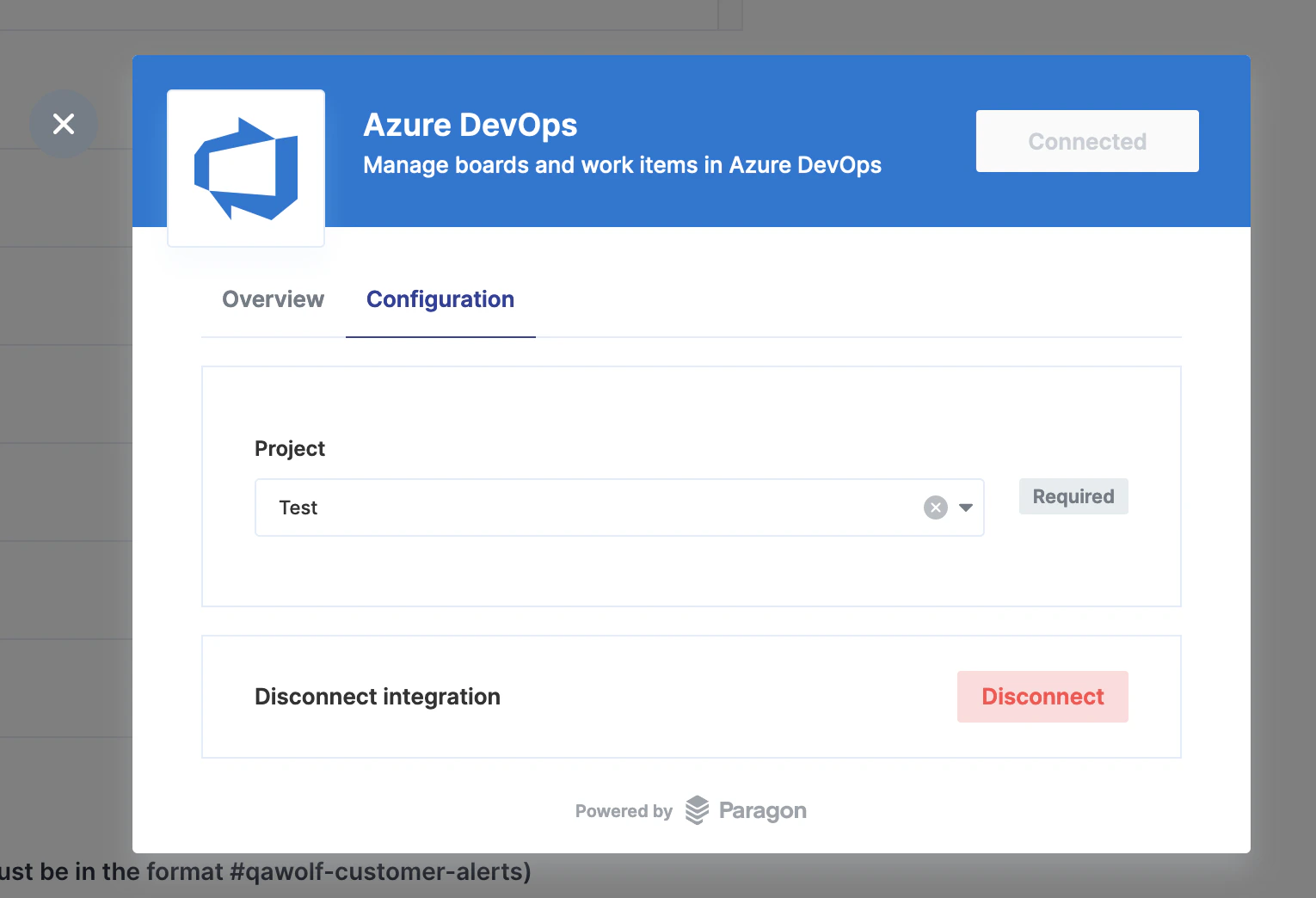
 Click **Configuration**, then select the target project from the dropdown.
* Click **Disconnect** at any time to disable the integration.
Click **Configuration**, then select the target project from the dropdown.
* Click **Disconnect** at any time to disable the integration.